
Image preview
The result can display the available photo so you can confirm that the correct public post was analyzed before downloading it.
Paste one direct public Instagram photo link to preview the available image and download it when you own it or have permission to save it.
Public photo post
Validating the post and looking for the best available image...
For one public image post
An Instagram photo downloader checks the direct link for one public single-image post and returns the available image result. GoodFetch can be used to download Instagram photos one permitted post at a time.
This Instagram image downloader keeps the format supplied by the source. Width and height are shown only when reliable dimension data are returned for that photo.
Understand the result
The information depends on what the public source and extraction provider return for the submitted post. Some photos may include fewer details than others.
The result can display the available photo so you can confirm that the correct public post was analyzed before downloading it.
GoodFetch shows the supported image format returned by the source. It does not promise to convert every photo to JPG, PNG, or another extension.
Image dimensions can appear when the extraction metadata includes reliable width and height values for that result.
Use the download option shown for the result. The browser controls the final filename and save location.
This page is designed for one public single-image post at a time. Multi-item posts belong in the Instagram Carousel Downloader.
A request may use a short-lived download reference, temporary file, or cached response. GoodFetch is not a permanent photo-storage service.
Instagram photo download steps
Use one direct public post link and review the available image before saving media you own or have permission to download.
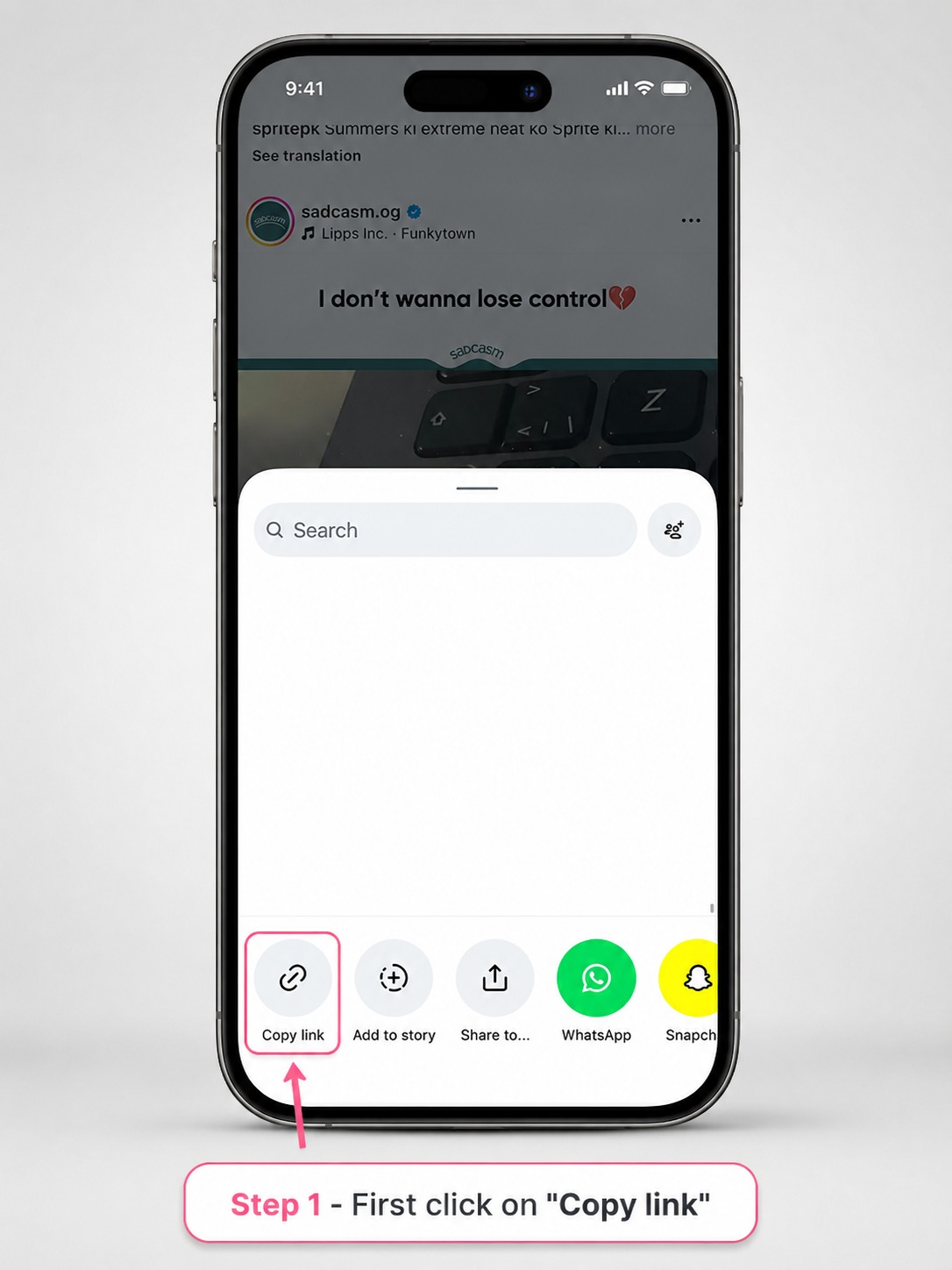
Open the individual Instagram photo post, use its share control, and copy the direct post URL.
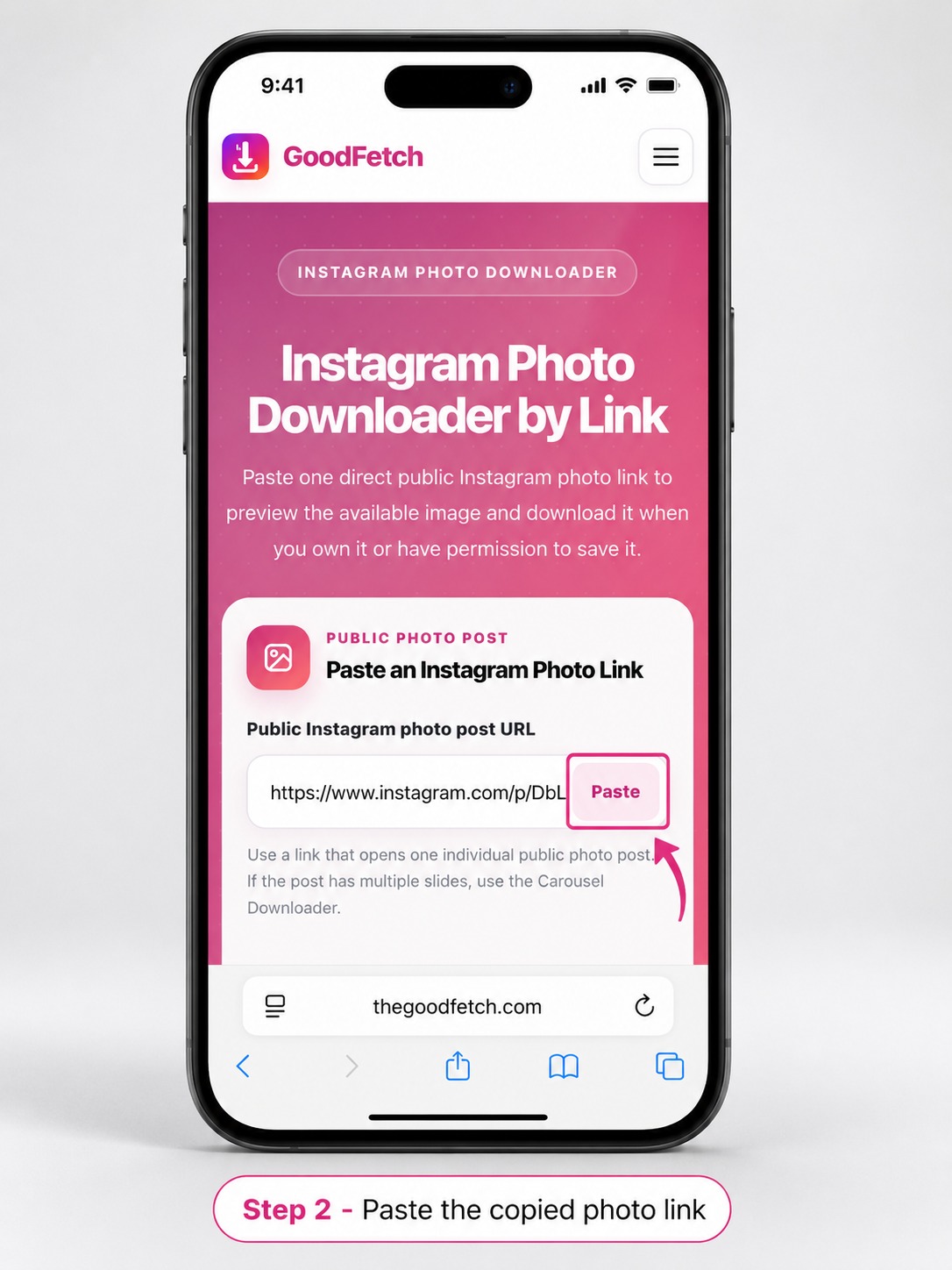
Paste the copied link into GoodFetch and start the public-source photo check.
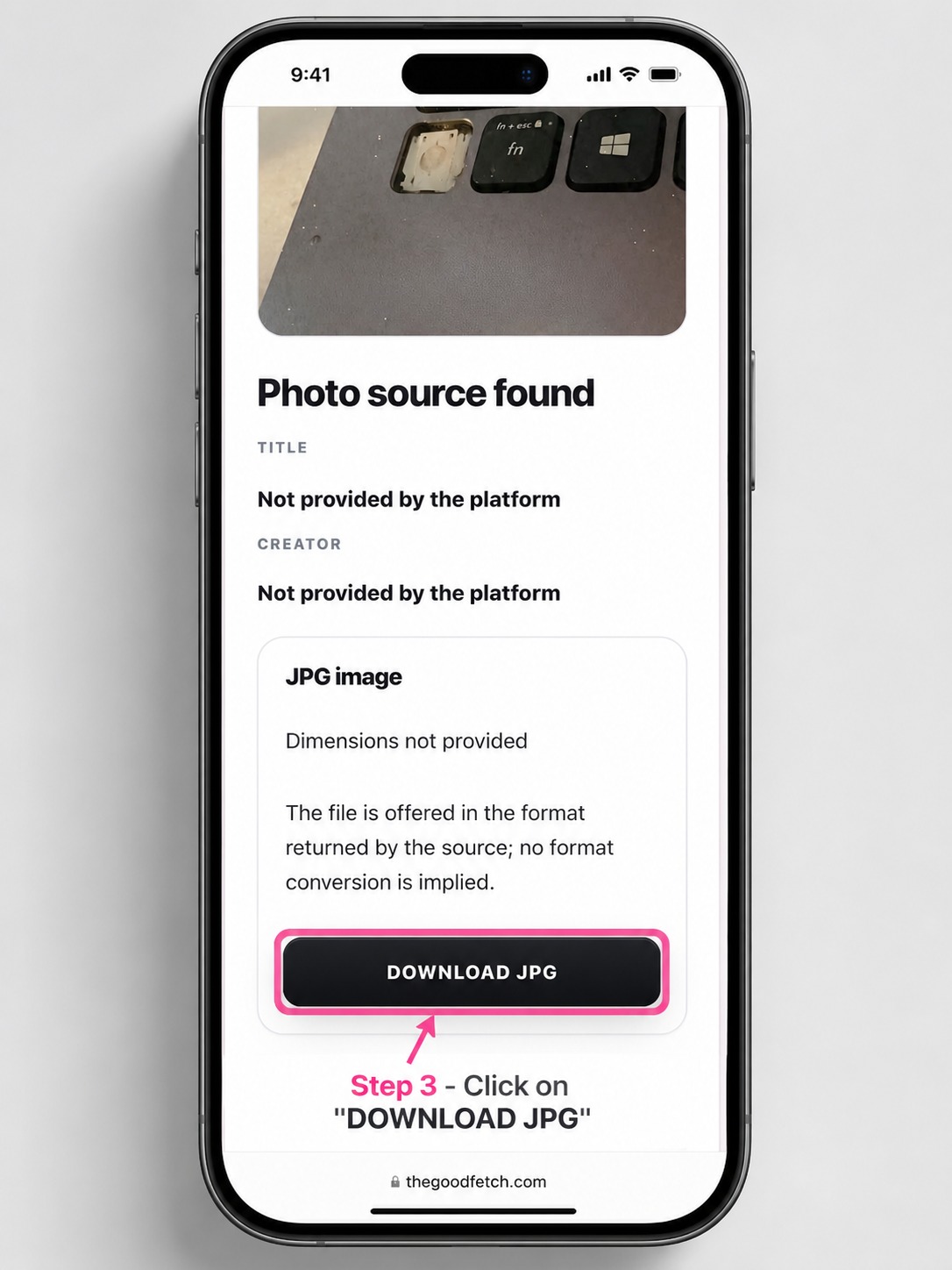
Review the available image, format, and dimensions, then use the download button when you are authorized to save the photo.
Choose by Instagram post type
Instagram uses different post structures for Reels, single images, and carousels. Open the dedicated downloader that matches what the public link displays.
Use this page when one public Instagram post contains a single image.
Use this Photo DownloaderUse the Reels page when the link opens one public short-form video.
Open Reels DownloaderUse the Carousel page when one post contains multiple photos, videos, or both.
Open Carousel DownloaderPublic Instagram image download
GoodFetch works in a browser and does not ask you to connect an Instagram account. The page handles one supported public single-photo post per request.
No username, password, cookies, or connected Instagram account are requested.
Use a link that opens one individual photo post without requiring a sign-in.
Use the Instagram photo download workflow without an app, APK, or browser extension.
The result uses the image made available by the source and does not guarantee HD, 4K, or an original upload file.
The form, preview, and download controls adapt to phones, tablets, and computers.
Posts with several items are directed to a dedicated tool that lists each available item.
Single image or multi-item post
Instagram can use a /p/ URL for both a single-image post and a carousel. The URL pattern alone does not confirm how many items the post contains.
Choose this page when the public post opens one image with no additional slides.
Choose the Instagram Carousel Downloader when the post contains multiple photos, videos, or a mixture of both.
When the wrong post type is submitted, GoodFetch may not return the expected result. Open the post first and check whether it has more than one slide.
Check the Instagram URL
A public-looking link can still fail when the post has been removed, restricted, or hidden behind an access requirement.
Save Instagram photos across devices
Your browser controls where the image is saved. Phones may place it in Downloads or Files before it becomes visible in Photos or Gallery.
Instagram photo download checks
Try these checks before submitting the link again. GoodFetch does not bypass Instagram access controls or create an image when the source does not return one.
Copy the link for one individual post instead of a profile, feed, Explore, or hashtag page.
If the post contains several items, submit it through the Instagram Carousel Downloader.
Test whether the post opens while signed out. Private and login-protected images are not supported.
Open the post again, copy its current share link, choose Start over, and resubmit the URL.
The photo may have been removed, restricted by region or age, or made unavailable after the link was copied.
A provider or network request can fail temporarily. Wait briefly and retry the same public link once.
Step-by-step iPhone help
Follow the dedicated GoodFetch guide to copy a public photo-post link, find the downloaded file in Safari or Files, and save it to Photos when iOS provides that option.
Read the iPhone photo guidePrivacy and processing summary
GoodFetch processes the public URL to identify the available image result and download option. The link may be transmitted to technical providers required to complete that request.
Some operations may use temporary files, cached responses, or short-lived download references. GoodFetch is not intended to work as permanent cloud storage or a searchable photo archive.
Technical logs may be retained for a limited period for security, reliability, abuse prevention, and troubleshooting. GoodFetch does not require your Instagram password, authentication token, private cookie, or connected account.
Review the complete Privacy Policy for analytics, cookies, infrastructure providers, temporary processing, and retention details.
Instagram Photo FAQ
Review link support, image quality limits, device saving, post types, and temporary processing.
Use a direct link that opens one individual public Instagram post containing a single image. Profile, feed, Explore, hashtag, Story, and login-protected links are not supported.
Copy the direct public post URL, paste it into GoodFetch, start the photo check, review the available image, and use the download button when you are allowed to save it.
No. GoodFetch does not ask for Instagram credentials, private cookies, an authenticated session, or an account connection.
No. Only publicly accessible posts are supported. Private, restricted, login-protected, and otherwise gated photos remain unavailable.
Use the Instagram Carousel Downloader. It is designed to list the available photos and videos from a public multi-item post separately.
GoodFetch provides the image made available by the source for that result. It does not guarantee the original upload file, a specific resolution, HD, or 4K quality.
No. The result keeps the supported image format returned by the source. GoodFetch does not promise to convert every image to JPG, PNG, WebP, or another format.
Download the available image through your browser, then check Downloads or Files. On supported phones, use the device share or save control to place the image in Photos or Gallery.
No. GoodFetch does not bulk-download a profile or process every post from an account. Submit one supported public post link at a time.
The URL may open the wrong page, the post may actually be a carousel, or the image may be removed, region-restricted, temporarily unavailable, or unsupported by the current provider.
Your browser normally saves the image in its configured Downloads location or asks you to choose a folder. On phones, it may first appear in Downloads or Files.
GoodFetch is not designed as permanent media storage. Some requests may use temporary files, cached responses, or short-lived references, while limited technical logs may be retained for operational, security, and legal purposes.
Related GoodFetch tools
Use a dedicated downloader when the Instagram post contains a Reel or several media items, or when the public link belongs to TikTok.
Only save images you created, are licensed to use, or have clear authorization to download. Public visibility does not remove copyright, privacy, or other creator rights. Read the Copyright Policy and Terms of Use.
Content reviewed: July 25, 2026 by the GoodFetch Team.