
Before you start
This guide covers one publicly accessible Instagram single-photo post. The link should open the individual image post, not a profile, feed, hashtag, Explore page, private account, or login-protected screen.
- Use one public single-photo post link.
- For several photos or mixed photo and video slides, use the Instagram Carousel Downloader.
- Keep enough free Android storage for the image file.
- Save only media you created, are licensed to use, or have permission to download.
Instagram Photo Downloader for Android
GoodFetch provides a browser-based workflow, so a separate downloader app, APK, browser extension, Instagram password, or private cookie is not required. Open the tool in Chrome or another modern Android browser and submit one supported public photo-post URL.
The browser controls where the downloaded file is stored. Android phone makers can use different Files, Gallery, Downloads, or Photos apps, so labels and menu positions may vary slightly across devices.
How to save Instagram photos on Android
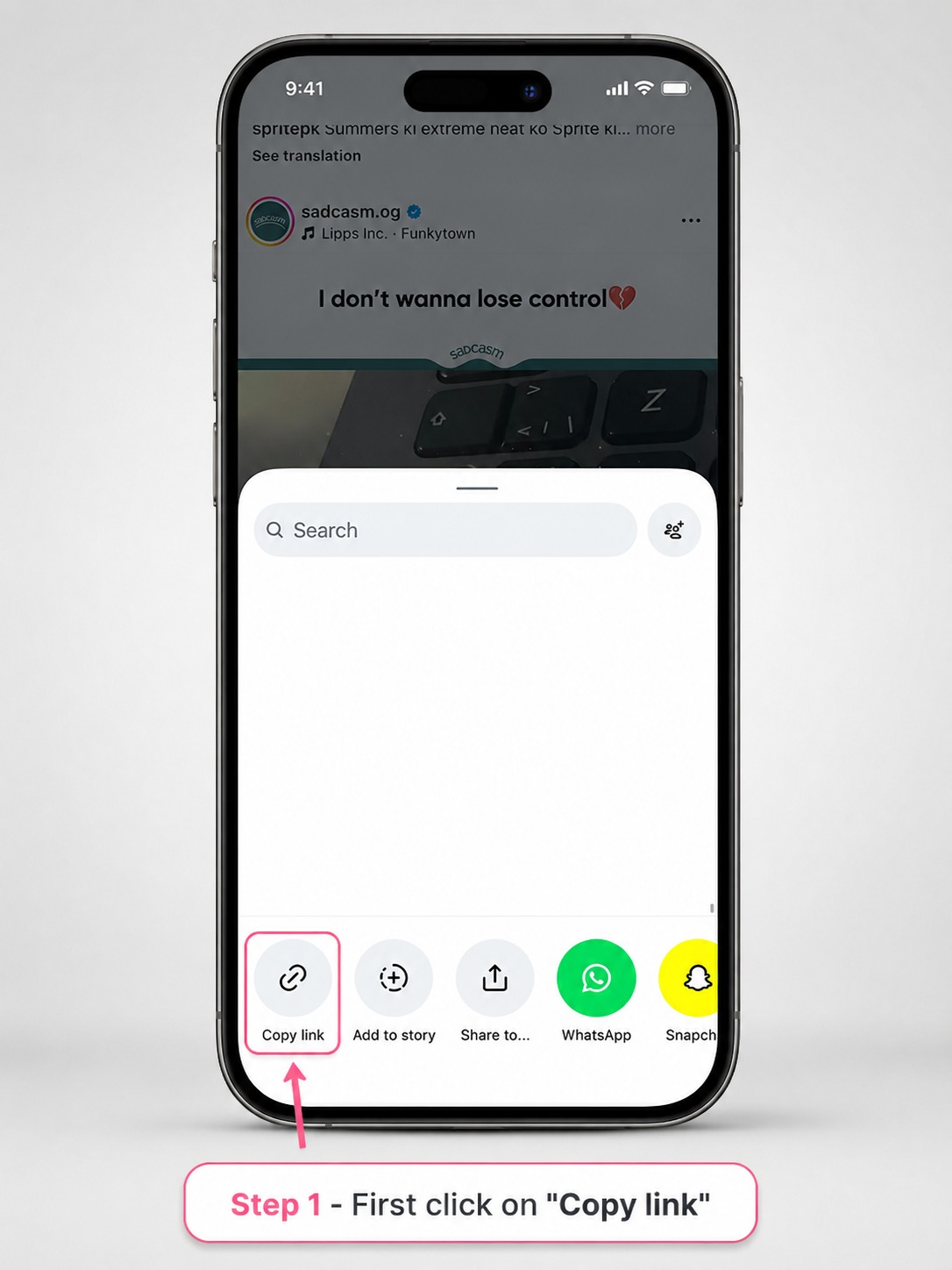
Copy the public Instagram photo link
Open the individual public photo post in Instagram. Tap Share and choose Copy Link. Confirm that the copied URL returns to that exact post rather than the creator's profile or feed.
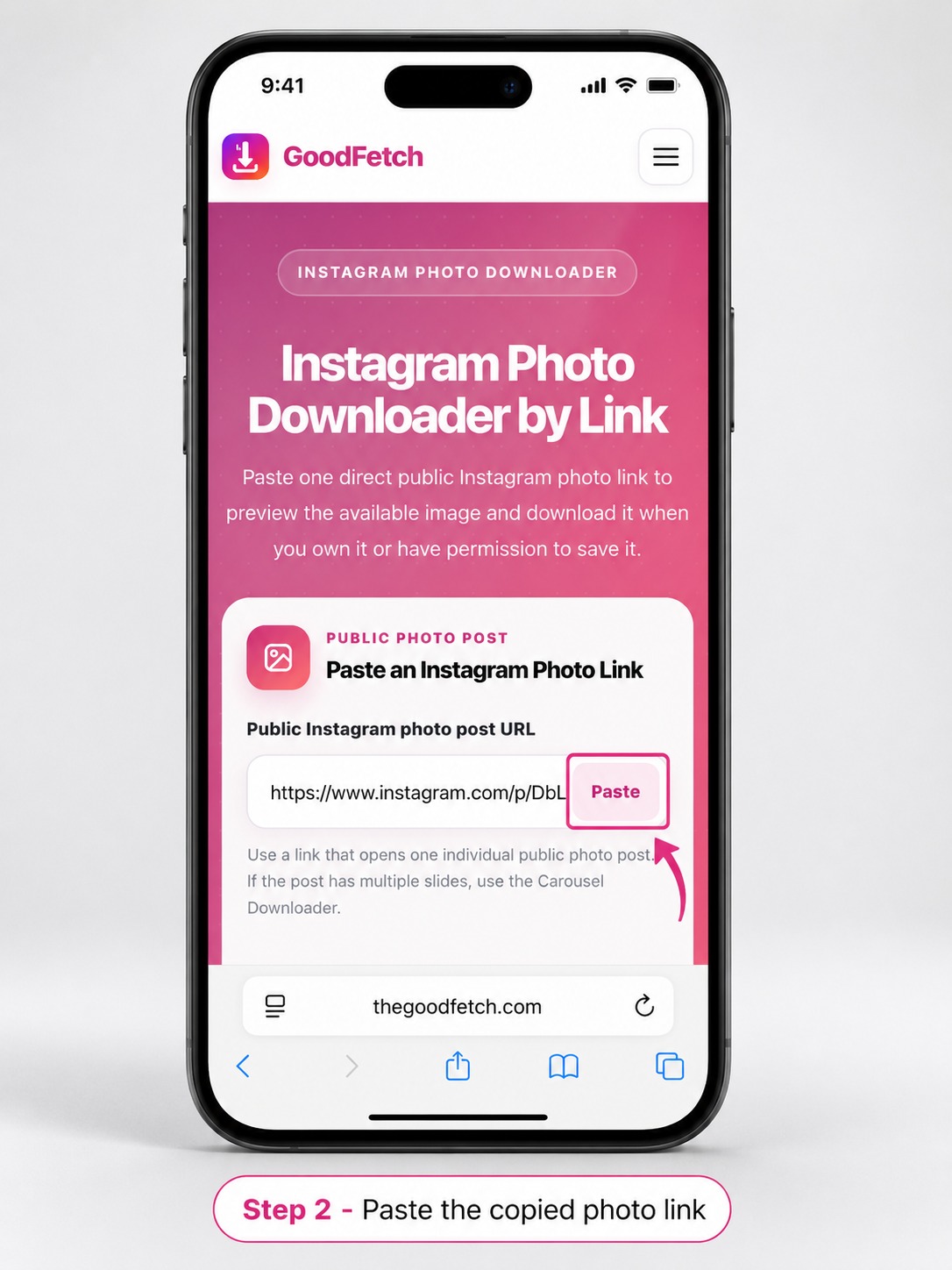
Paste the post URL into GoodFetch
Open the Instagram Photo Downloader in your Android browser, paste the copied link, and start the public-source check. GoodFetch displays a result only when the configured source returns an available image.
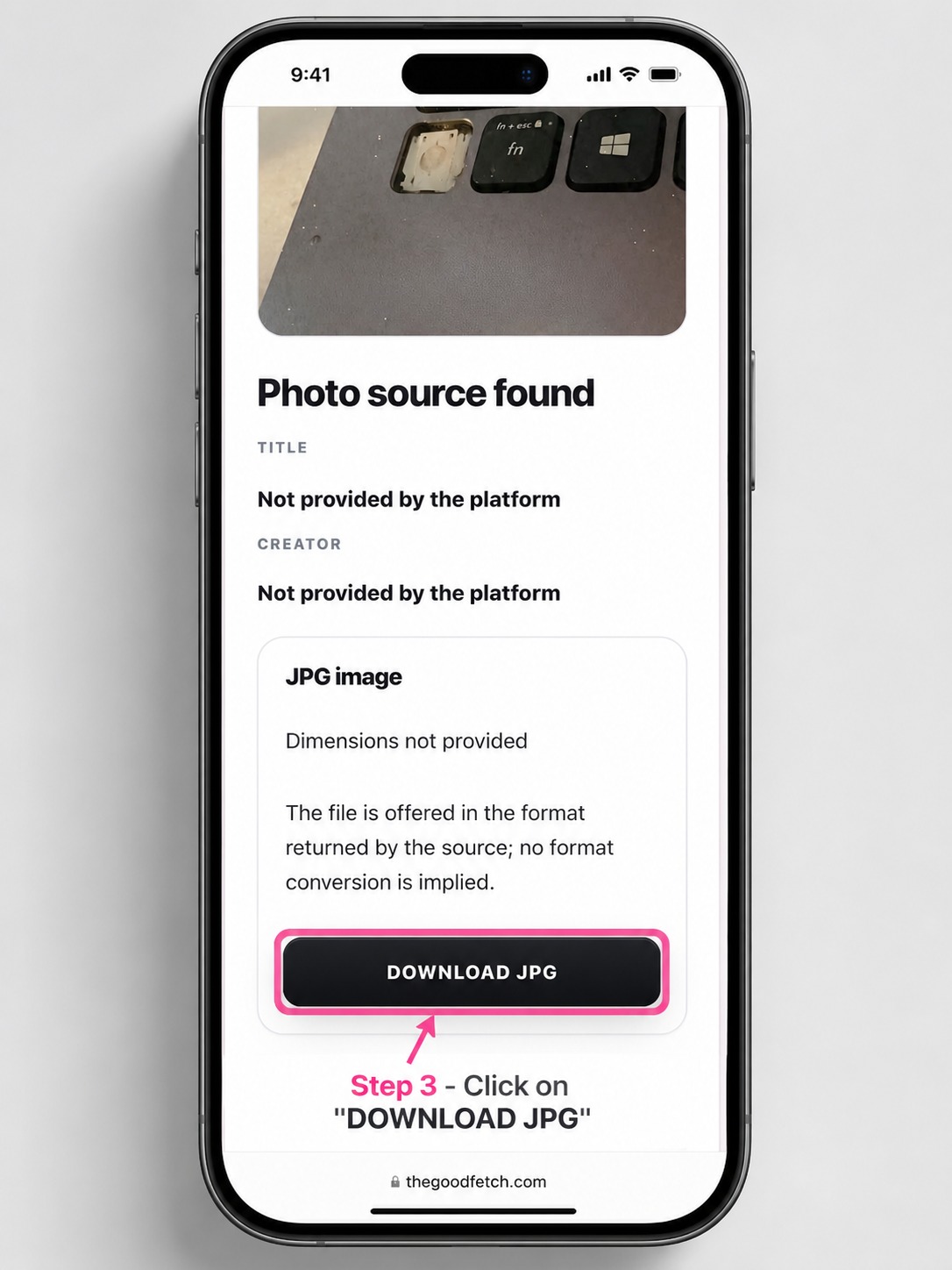
Review and download the image
Check the preview, format, and available dimensions, then use Download Photo. Wait for the browser to confirm that the download has finished before closing the page or looking for the file.
Where are downloaded Instagram photos saved on Android?
Most Android browsers save internet downloads in the device's Downloads folder. You can usually reach the image from the download notification, the browser Downloads screen, or a Files app.
- Open the browser menu and choose Downloads, or open your device's Files app.
- Choose Downloads or the recent files view.
- Tap the image to confirm that the download completed correctly.
- Use the file information screen when you need to confirm its folder, format, or size.
How to show the downloaded image in Gallery or Google Photos
Some Android devices show a completed image in Gallery automatically after the system indexes the Downloads folder. When it does not appear immediately, open the file from Downloads and wait briefly before checking Gallery again.
Move or copy the image to Pictures
When your Gallery app does not scan Downloads, use the Files app to copy or move the image into the Pictures folder. Do this only when necessary, because moving the file changes its original location.
Open or share the image with Google Photos
Open the downloaded image, tap Share or Open with, and choose Google Photos when that option is available. Whether the image is backed up to your account depends on the folders and backup settings selected in Google Photos.
Why an Instagram photo may not download or appear
The copied link opens a profile or feed
Return to the individual public photo post and copy its Share link again. Profile, feed, Explore, and hashtag URLs are not supported single-photo links.
The post is private, removed, or login-protected
GoodFetch does not authenticate with Instagram or bypass access controls. The post must be available to the configured public source.
The browser asks for download permission
Follow your browser and Android permission prompts only when you trust the current action. A denied storage or download permission can prevent the file from being saved.
The image is in Downloads but not Gallery
Open the image from Files, wait for the device to index it, or move a copy to Pictures when your Gallery app does not scan the Downloads folder.
The temporary result expired
Analyze the original public post URL again and use the new result or download reference.
Can you save Instagram photos in high quality on Android?
GoodFetch provides the image source returned for the public post. Review the displayed format and dimensions before saving the file. The original upload, a fixed high resolution, lossless quality, and identical compression are not guaranteed.
Privacy and responsible use
GoodFetch processes the submitted public link to prepare the available result and may use temporary files, cached responses, or short-lived references. It does not request an Instagram password or private-account access. Review the Privacy Policy, Copyright Policy, and Terms of Use.
Frequently asked questions
How do I save an Instagram photo on Android?
Copy one public single-photo post link, process it with the GoodFetch Instagram Photo Downloader, download the returned image, and find it in your browser Downloads list or the device Files app.
Where do downloaded Instagram photos go on Android?
Most mobile browsers save downloaded images in the Downloads folder. Open the browser Downloads screen or a Files app and check Downloads. The exact app name and folder view can vary by device.
Why is the downloaded photo not showing in Gallery?
The file may still be downloading, Gallery may not have indexed it yet, or the image may be stored in a folder that the Gallery app does not scan immediately. Open it from Files, wait briefly, or move a copy to Pictures when necessary.
Can I save the image to Google Photos?
Open the downloaded image in Files or your browser Downloads list, use Share or Open with, and choose Google Photos when that option is available. Backup behavior depends on your Google Photos settings.
Can GoodFetch download private Instagram photos?
No. GoodFetch supports publicly accessible photo-post links and does not request an Instagram login, private cookie, or access to a private account.
Can I download several photos from one Instagram post?
Use the Instagram Carousel Downloader when a public post contains multiple slides. The Photo Downloader and this guide are intended for one single-image post.
Does GoodFetch guarantee the original image quality?
No. GoodFetch provides the image source returned for the public post. Dimensions and compression can vary, and the original upload or a fixed high-resolution file is not guaranteed.
Ready to check a public Instagram photo link?
Use the dedicated GoodFetch tool for one supported public single-image post.